

Do you need different SymptomScreen priority instructions for different teams? Or different instructions for different times of day? The new Instruction Sets feature can help with this.
Instruction Sets allow you to use the same SymptomScreen guides and questions while showing different priority instructions for certain groups of users, clinics, workflows, or schedules.
What Are Instruction Sets?
Instruction Sets are alternative versions of the Summary Instructions and Detailed Instructions for each priority in your account. Instead of having a singular set of priorities with differences outlined in lengthy detailed instructions, SymptomScreen administrators can now define separate sets of instructions based on how different teams work. This gives organizations more flexibility while keeping the underlying SymptomScreen guides and questions consistent and easier to maintain.
For example, Instruction Sets can support:
- Multiple clinics using the same SymptomScreen account, where each clinic has its own processes or workflows
- Different instructions for office hours, after hours, weekends, or holidays
- Different teams that handle calls in different ways
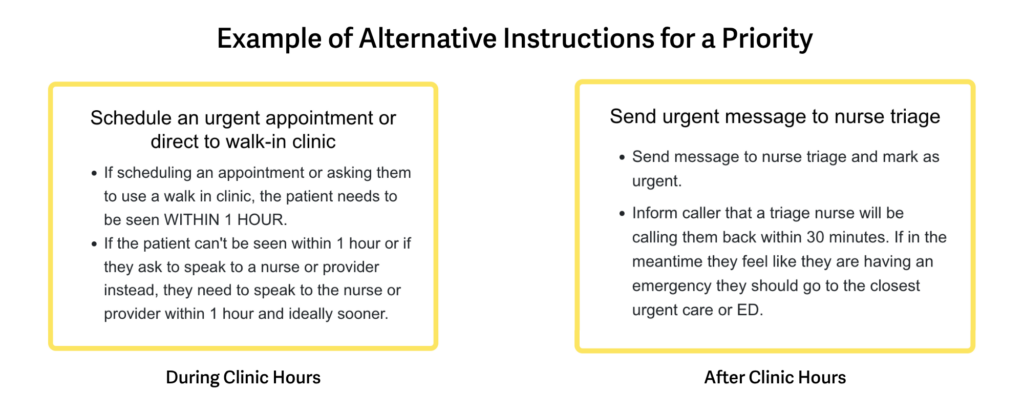
Detailed Examples
Let’s take a look at a few common scenarios where Instruction Sets would be helpful.
Example 1: Multiple clinics with different workflows
An organization may have several clinics using SymptomScreen, such as:
- Main Call Center
- Primary Care Clinic A
- Primary Care Clinic B
Each clinic may use the same SymptomScreen guides and questions but have different instructions for what staff should do once a priority is reached. The main call center might route all of their red calls to nurse triage, while Clinic B might not have nurse triage available so instead direct staff to contact a provider or direct patients to the emergency department for red calls.
With Instruction Sets, each clinic can have its own instructions for each priority without the need to maintain separate screening guides.
Example 2: Different instructions by time of day
Some teams handle symptom calls differently depending on whether the clinic is open or closed.
For example, an organization may need:
- One set of instructions for calls during regular clinic hours
- Another set of instructions for after hours calls
- A different set for weekends or holidays
Instruction Sets make sure staff see the instructions that apply to their current workflow, reducing confusion and helping them respond more consistently.
How to Set Up Instruction Sets
The first step is simply to turn on Instruction Sets. This can be done in SymptomScreen Admin by selecting Advanced Features from the Account Settings (General) menu.
Once this feature is turned on for your account, admin users can create and manage Instruction Sets within Priority Customization. For detailed setup instructions, please refer to the SymptomScreen Admin Manual. The Admin Manual walks admins through the setup process step by step.
How to Select an Instruction Set
There are many different ways for your staff to access the appropriate instruction set.
- The user can choose between instruction sets in a dropdown list after they sign in.
- The user can choose between instruction sets at any time in a dropdown list at the top of SymptomScreen.
- If using the Epic integration, an instruction set can be selected based on the user’s department or the encounter department.
- ClearTriage Support can create a different Quick Link for each instruction set.
Summary
The new SymptomScreen Instruction Sets feature gives administrators a flexible way to manage alternative priority instructions for different users, teams, clinics, or times of day.
By allowing organizations to maintain one set of guides and questions while tailoring instructions to specific workflows, Instruction Sets help make SymptomScreen easier to manage and clearer for staff to use.
For step-by-step setup guidance, see the SymptomScreen Admin Manual or contact the SymptomScreen support team.